
How to Create an Effective Communication Board for Your Workplace
A digital communication board done right replaces stale corkboards and email blasts. Layouts, content cadence, and hardware that actually get read.
On this page
Walk through any office, factory floor, hospital, or campus and you'll find a corkboard or whiteboard at the entrance, layered with months-old paper. The digital communication board is the modern replacement — a screen at the same spot, refreshed daily from a central CMS, readable from across the room. Done right, it's the most-read internal communication tool in the building.
CrownTV has been deploying digital signage for 13+ years across 1,800+ operators, with ~10,000 screens running live. Internal communication boards are one of the highest-ROI applications we deploy — for Herman Miller, manufacturing operators, healthcare facilities, university campuses, and corporate offices.
This guide covers what makes a workplace communication board actually work:
- Layout and zoning — what goes where on the screen
- Content cadence — what updates daily, weekly, monthly
- The hardware and software stack
- Who owns it and how to keep it from going stale
- Real budget for a single-screen and multi-screen rollout
What a Communication Board Should Do
Before you design layouts, decide what the board needs to accomplish. The honest list for most workplaces:
- Tell people what's happening this week (events, training, all-hands, leadership messages)
- Recognize people (work anniversaries, birthdays, promotions, kudos, safety milestones)
- Display operational data (production targets, safety days, KPIs, customer satisfaction)
- Push critical alerts (weather, IT outages, building issues, emergency)
- Show context info (today's date, weather, lunch menu, traffic, building hours)
Anything outside that list is a distraction. Marketing material aimed at employees who don't care, vendor logos, scrolling headlines from external news — these dilute attention and train people to ignore the screen.
Layout: A Multi-Zone Template That Works
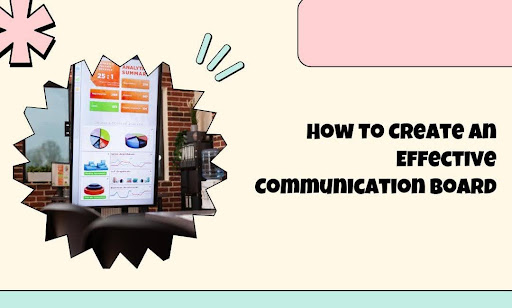
A 55"–65" landscape display in a high-traffic spot, divided into four zones:
- Zone 1 — Hero (60% of screen): Rotating tiles. This week's event. Today's all-hands. Featured employee recognition. Operational metric of the day. 8–12 second dwell per tile.
- Zone 2 — Side rail (25%): Scrolling list of events, announcements, training reminders. Static, updated daily.
- Zone 3 — Bottom ticker (10%): Time, date, weather, building info, lunch menu.
- Zone 4 — Top bar (5%): Logo, "Powered by [Department]" attribution.
For portrait orientation (often used in elevator banks and hallways), flip Zones 1 and 2 to stack vertically. The principles stay the same.
Content Cadence: Daily, Weekly, Monthly
Daily
- Lunch menu (if applicable)
- Weather and traffic updates
- Emergency or active building issues
Weekly
- This week's events and meetings
- Birthday and work anniversary recognition
- Featured kudos / employee shout-outs
- Operational metrics (safety days, production, customer NPS)
Monthly
- Leadership message or quarterly priority
- Updated photos and visuals
- Refreshed templates if anything looks tired
Always-On
- Mission, values, or current strategic focus
- Building hours, common-area policy reminders
- Emergency contact info
Visual Standards That Hold Up Across the Room
The board fails if people can't read it from 15 feet away. The rules:
- Minimum body text 36–42 pt at 1080p resolution on a 55" screen.
- Headlines 60–80 pt, bold, sans-serif.
- High contrast. Dark text on light backgrounds (or vice versa). No light gray on white.
- Maximum 6–10 words per headline. Bodies shorter than 25 words.
- One focal element per tile. Photo or graphic, not both, not three.
- Consistent template. Same fonts, same logo position, same color palette across all tiles. Inconsistency reads as amateur.
Hardware
The Display
For an indoor communication board running 8–12 hours daily, the right panel is a 55"–65" commercial display:
- Samsung QMR-T 55" or 65": 500 nits, 16/7 duty cycle, $900–$1,500. The default workhorse.
- LG UH7J 55" or 65": Wide viewing angles for hallway placement.
- Sony BRAVIA BZ40L 55" or 65": Color accuracy where the board includes brand-critical content.
The Media Player
Dedicated media player (CrownTV, BrightSign XT/XD) is the right move for any deployment past a single screen. Built-in smart-TV apps don't reliably handle multi-zone layouts or scheduled content rotation across multiple boards.
Mounting and Cabling
VESA-compliant flat or tilted mount. HDMI from media player to display, ideally less than 25 feet. Ethernet from a wall jack to the player. Standard 110V outlet. Run cabling inside the wall or in a clean raceway.
Software (CMS)
The CMS is where you upload tiles, schedule them, and manage which content goes to which board. Look for:
- Multi-zone layouts as a built-in feature
- Templated content (drop-in headline + image + CTA)
- Scheduling — date range, time of day, day of week
- Screen groups for managing multiple boards (HQ, regional offices, factory floors)
- Role-based permissions — corporate communications can override local content for an emergency, but local managers can post their own kudos and events
- Expiration dates on every asset (auto-removal)
The CrownTV Dashboard CMS handles all of this out of the box. For software comparisons see Best Digital Signage Software.
Who Owns It (the Single Most Important Question)
Communication boards die when ownership is fuzzy. The deployment that works has:
- One named owner per board. Internal Comms, HR, Operations, or office manager — pick one.
- A backup owner. Vacations, departures, illness — the board still updates.
- A weekly content cadence. Calendar reminder every Monday morning: review the board, update what's stale, add anything new.
- Quarterly audit. Walk past the board with fresh eyes. What's been there too long? What's missing?
- Templates the owner can edit in 5 minutes. If updating the board takes 45 minutes per tile, it won't get updated. Pre-built templates are mandatory.
Single-Screen Budget
- 55" Samsung QMR-T panel: ~$1,000
- VESA tilt mount: ~$120
- Media player: ~$350
- Cabling (HDMI, Ethernet) and outlet: ~$200
- Mounting labor: ~$300–$500
- CMS software: ~$30/month per screen
- Initial template package (8–12 tiles, branded): ~$1,500–$3,500
Total turnkey: roughly $4,000–$6,000 for the first board. Each additional board lands closer to $2,500–$4,000 since template work is reused.
Multi-Site Rollout
For a corporate operator deploying 10–25 boards across multiple offices:
- Hardware (panel, mount, player, cabling): ~$2,000–$3,000 per location
- Installation: ~$400–$800 per location
- CMS at scale: ~$25/screen/month with volume discounts
- Template kit (one-time): ~$5,000–$10,000
- Ongoing content production: budget 10–20 hours/month of an internal comms staffer
How CrownTV Helps
One contract for hardware + software + install + service:
- Samsung Authorized Reseller — QM, OM, OH panels at commercial-grade pricing
- CrownTV Dashboard CMS with multi-zone layouts, role-based access, and expiration dates
- Site survey, mounting, cabling, commissioning, and warranty service in all 50 states
- 13+ years of experience deploying internal communication boards across corporate, manufacturing, healthcare, and education environments
Get a communication board quote in four business hours →
Read Next
Keep reading
More guides like this
Operator-grade playbooks, weekly.
Proof, not pitches
See real installs
Live deployments across hospitality, retail, and offices.
Ready to deploy?
Get a quote in 4 hours
Reply within four business hours. No call required.